Welcome to Segal Secure File Transfer (SFT)
Overview
Secure File Transfer (SFT) is Segal's preferred tool for the exchange of confidential data and information. If your organization prefers another secure data transfer tool, speak with your contact at Segal. Please do not share your credentials for Segal SFT. Give your Segal contact the names and email addresses for new team members to use Segal SFT.
Table of Contents
- Register Your Account
- Sign In
- Home Page
- Receive a Message
- Download a File
- Reply to a Message
- Sign out of SFT
Register Your Account [Top of Page]
Register your account the first time you use SFT. You create your own password. Never share your password for Segal SFT.
Segal SFT requires two-step verification. The extra sign-on step ensures that your files on SFT are protected. Segal recommends an authenticator app if you have a smartphone. An email option is also available.
Instructions for setting up 2-step verification are also available as a printable PDF.
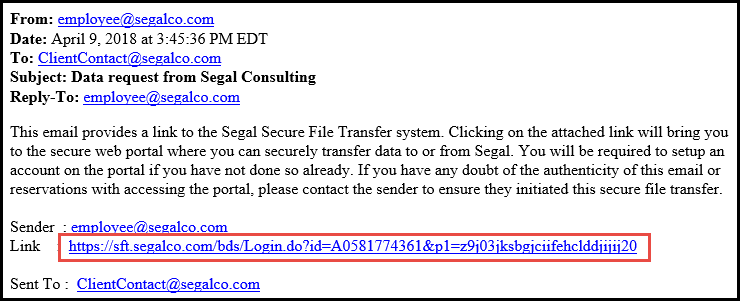
- Open the automated message that came from your Segal contact. The message looks like the sample below.
- Click the Link in the message.
The first time you open Segal SFT, you need to register and set up 2-step authentication. - On the User Registration page, complete the required fields and click Register.
TIP: Create a strong password on SFT—at least 12 characters long with a mix of letters, numbers, and punctuation marks. - You will receive an automated account-activation message from segalsft@segalco.com after you register.
Follow the link in the account-activation email message that comes after you complete registration.
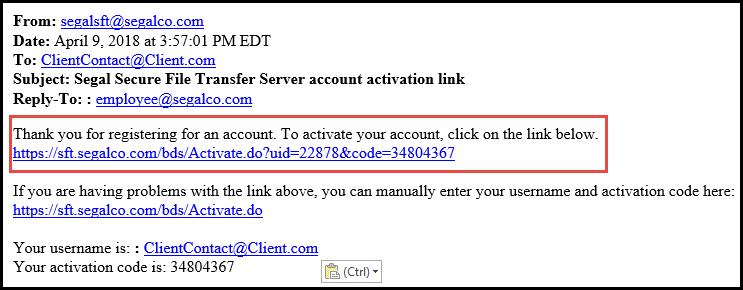
Your account on Segal SFT is now activated. You should be back at the SFT sign-on screen. The next step is to set up 2-step verification. - Sign on using the password you created.
- At the prompt for "2-step verification" Select the first option, "Use an authentication app..."
Segal employees use Okta Verify which is available for both Android and iOS (Apple) mobile devices. If your organization has a different app, Segal recommends that you use your organization's preferred authenticator app.
- After you activate your account, you will receive a final automated message from segalsft@segalco.com that has a sign-in link.
Sign In [Top of Page]
Once you have registered on the site and set up 2-step verification, simply log on at https://sft.segalco.com:
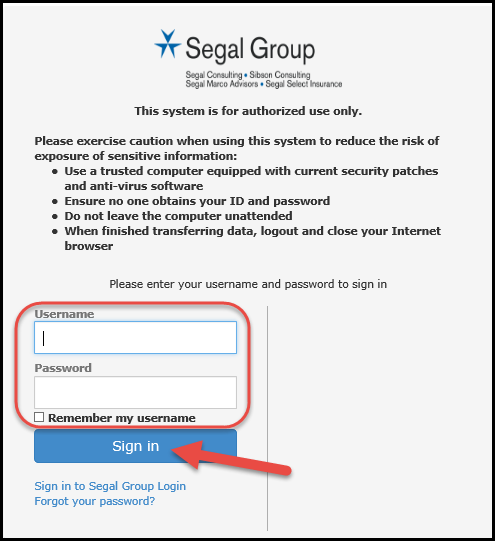
- Enter your Username (your e-mail address) and Password (case sensitive).
- Click the Sign in button.
Home Page [Top of Page]
The home page is your starting place for all SFT tools.
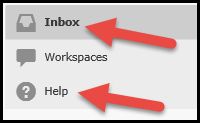
- Inbox:lists the secure messages and attachments that you have received in SFT.
- Help:opens these instructions in your web browser.
Receive a Message [Top of Page]
For your convenience, an automated message will arrive when a Segal contact posts something for you on https://sft.segalco.com.
- In email, open the automated message that you received from your Segal contact.
- Click the link in the message.
- Sign into the SFT site as described above. NOTE: After your first visit, your user name may already be entered in the Username field.
Download a File [Top of Page]
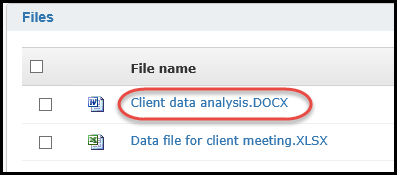
When files are waiting for you in SFT, the files are listed in the secure message.
- Sign into SFT and open your Inbox.
- Click the link of the delivery you want to open.
- Click on the file name for each file you want to download.
- Save the file to a secure location on your network.
- Click the Save dropdown button.
- Choose Save As from the menu.
- Navigate to a folder on your organization's network where you can save the file securely.
- Click the Save button.
Reply to a Message [Top of Page]
For security reasons, all content is automatically removed from SFT thirty (30) days after being posted. Avoid using SFT for extended conversations.
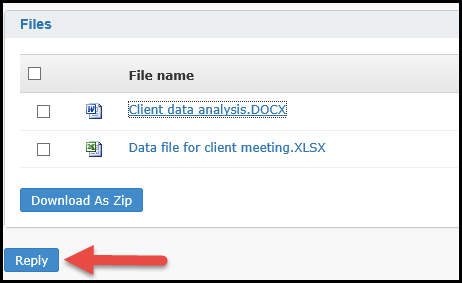
- Click the Reply button.
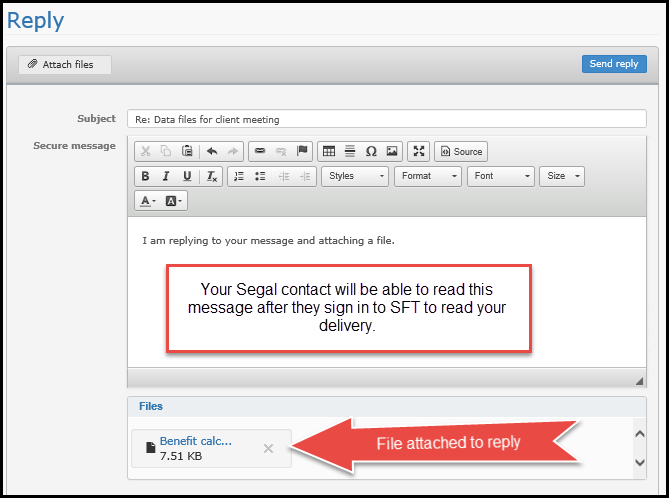
- Type your reply in the Secure Message field.
- Click the Attach files button if you have a file to attach.
- Click the Send Reply button.
Sign out of SFT [Top of Page]
Always sign out of SFT at the end of your session.
- Click on your name in the top right corner of the page.
- Choose Sign Out.
- Close the browser.